
Toyota Techstream Remote Programming:
J2534 VCI Mapped to Your PC for Techstream and GTS+
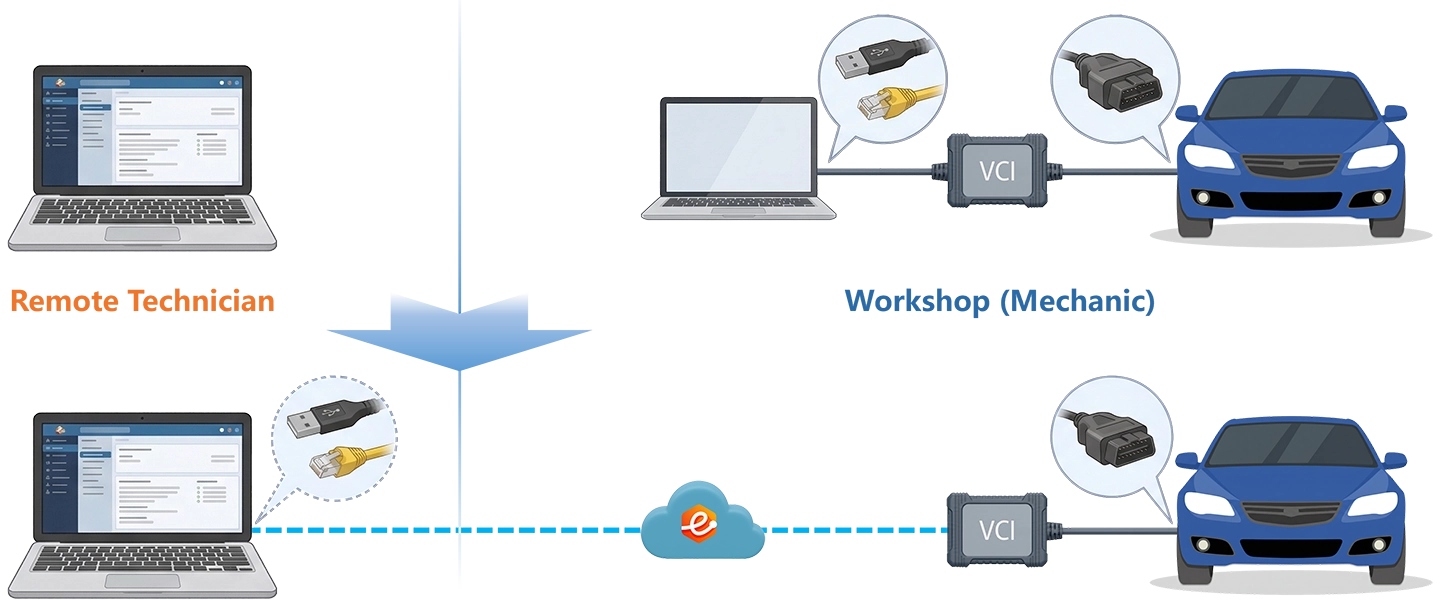
Replacing an SRS module on a 2022 Sienna Hybrid, flashing a new ECU on a 2023 RAV4 Prime, or resetting a Tundra Smart Key after an all-keys-lost event — each of these jobs requires a live Techstream or GTS+ session with a J2534 VCI recognized as locally connected. eLinehub maps your workshop’s J2534 interface directly to the remote Technician’s Windows PC at the OS and driver level. Techstream and GTS+ discover it through the standard VIM selection screen — the same menu path used when the VCI is physically present.
- ✓Mini VCI J2534, Tactrix OpenPort 2.0, and VXDIAG VCX Nano Toyota appear on your Technician PC as locally connected USB devices — Techstream and GTS+ discover them through the standard VIM selection menu
- ✓ECU Security Key writes, Smart Key immobilizer resets, TSS-2.5+ calibration, and GTS+ ECU flash all run from your PC with your own TIS subscription and Techstream or GTS+ installation
- ✓The workshop installs only eLinehub Mechanic (free) — no Techstream subscription, no TIS account, no GTS+ license at the workshop
The workshop connects the J2534 VCI and the vehicle. You bring Techstream or GTS+ and your TIS credentials. eLinehub provides the bridge. · By eLinehub ·
You hold a Techstream or GTS+ subscription, an active TIS account, and want to perform Security Key writes, Smart Key resets, TSS calibrations, and ECU flash sessions for workshops that have a J2534 VCI but no OEM software access.
You service 2021+ Toyota vehicles and need OEM-level ECU Security Key writes, ADAS calibration, or post-repair full-system scanning that your aftermarket tools cannot complete — without sending vehicles to a dealership.
You supply Toyota-compatible J2534 VCI hardware to workshops or manage multiple repair locations, and want to extend the value of that hardware with a centralized Techstream or GTS+ programming service.
Why Toyota Module Replacement Requires Techstream or GTS+
On 2021 and newer Toyota vehicles, replacing a module is not the last step. Installing an SRS unit, forward camera, or ECU on a Sienna Hybrid, RAV4 Prime, or 2022+ Tundra leaves the module offline until Techstream or GTS+ completes the Security Key write through a live TIS connection.
ECU Security Key Writing (TSK)
2021+ RAV4 Prime · Sienna Hybrid · Expanding to 2024+ platformsRAV4 Prime / Sienna Hybrid / Venza Hybrid (2021+) · Tundra / Tundra Hybrid (2022+) · bZ4X / Corolla / Corolla Cross / Crown / GR Corolla / Prius / Prius Prime / Sequoia Hybrid (2023+) · Grand Highlander / Highlander / Tacoma / Tacoma Hybrid (2024+)
Toyota introduced ECU Security Key writing with the 2021 RAV4 Prime and Sienna Hybrid, then expanded the requirement across most hybrid and newer ICE platforms through model year 2024. When a replacement ECU, SRS module, forward camera, or BSM radar is installed on these vehicles, the module refuses to join the CAN bus until Techstream or GTS+ connects to Toyota’s TIS servers and writes a vehicle-specific Security Key. No aftermarket scan tool can substitute for this step. The 2022–2023 Camry with a replaced SRS module presents a U-code for the missing Security Key until the write completes — Health Check shows ECU Security Key status as “Necessary.”
Smart Key and Immobilizer Reset
All-Keys-Lost · Key Addition · GTS+ Smart Access2022+ Tundra · 2024+ Tacoma · 2021–2024 Sienna Hybrid · RAV4 · Venza · Sequoia Hybrid · Crown · GR Corolla · Highlander (key addition / all-keys-lost)
Any all-keys-lost situation on a 2022+ Tundra, 2024 Tacoma, or 2021–2024 Sienna requires GTS+ Smart Access, a valid TIS subscription, and manager-level approval before the immobilizer reset proceeds (per NHTSA TSB T-SB-0013-24 Rev1). A dealer visit for this service involves a manager authorization queue; an independent shop with remote GTS+ access completes the same workflow without a dealer referral. Techstream v18 cannot access Smart Access on 2022+ Tundra and 2024+ platforms — GTS+ is required.
Toyota Safety Sense Calibration
TSS-P · TSS-2.5 · TSS-2.5+All Toyota models equipped with TSS-P, TSS-2.5, or TSS-2.5+ · Corolla · Corolla Cross · RAV4 · Camry · Highlander · Sienna · Tundra · Tacoma · bZ4X · Crown
Every Toyota equipped with TSS-P, TSS-2.5, or TSS-2.5+ requires sensor recalibration after windshield replacement or front bumper removal. The 2023–2024 Camry running TSS-2.5+ adds a grille-mounted radar to the calibration sequence alongside the windshield-mounted camera. On 2024 and newer models, Records of Behavior (ROB) entries stored in Vehicle Control History must be cleared through GTS+ before the calibration sequence will complete. ROB data is invisible to non-Toyota tools — a clean aftermarket scan does not mean calibration will succeed if ROB history is present.
GTS+ vs. Techstream (GTS v18) — Which is Required
2024+ Platforms Require GTS+GTS+ mandatory: Grand Highlander 2024 · Tacoma 2024 · Any vehicle requiring Security Signature for ECU flash · ROB clearance on 2024+ vehicles
Techstream (GTS v18 and earlier) handles the clear majority of remote Toyota jobs on pre-2024 vehicles. GTS+ is required for 2024+ platforms including the new Tacoma and Grand Highlander, for any ECU flash requiring a Security Signature, and for ROB code clearance. GTS+ demands at minimum 16 GB RAM, an SSD, and Windows 10/11 Pro on the Technician’s PC — independent of eLinehub. The 2024 Grand Highlander uses the DoIP communication protocol; a GTS+-certified J2534 device that explicitly supports DoIP is required. Standard Mini VCI J2534 and Techstream v18 are not sufficient for this platform.
How eLinehub Maps the J2534 VCI to Your Techstream Session
eLinehub does not relay your screen or proxy VCI commands. It maps the physical J2534 VCI at the workshop — VXDIAG VCX Nano Toyota, Tactrix OpenPort 2.0, or Mini VCI J2534 — directly into the Technician’s PC at the OS and driver level. Techstream and GTS+ discover it through the standard VIM selection screen. TIS online authentication, Security Key writes, and ECU flashing run through the Technician’s own server connections — eLinehub does not intercept or modify those.
Screen Share vs. Hardware Relay Box vs. eLinehub
Four Toyota Remote Programming Scenarios
Each scenario starts from the point where the mechanical work is done and the J2534 VCI is connected via USB to the workshop PC. The Mechanic does not need Techstream, GTS+, or a TIS subscription.
ECU Security Key Write After SRS Module Replacement — 2022 Toyota Camry
A 2022 Toyota Camry arrives with a replaced SRS airbag module. A full system scan reveals a U-code on the SRS module, and Techstream Health Check confirms ECU Security Key status is “Necessary.” The module is installed and powered but is not yet communicating on the CAN bus.
- Connect the J2534 VCI (e.g., VXDIAG VCX Nano Toyota or Tactrix OpenPort 2.0) to the Camry OBD-II port and workshop PC via USB.
- Open eLinehub Mechanic. Confirm the J2534 device appears in the device list. Assign a passcode and publish the order. Confirm the workshop PC is on a wired internet connection.
- Remain at the vehicle. Do not open Techstream locally.
- Accept the order in eLinehub Technician. Confirm the J2534 VCI appears in the Mechanic USB device list — status should not show “Not Shared.” Select the device and choose Relay for maximum session stability during TIS authentication.
- Initiate the connection. Once the USB mapping completes, open Techstream. Navigate to Setup → VIM Selection and select the mapped J2534 interface (e.g., “VXDIAG – VCX Nano” or “Mongoose – Tactrix Openport 2.0”).
- Connect to vehicle. Navigate to Health Check → All Systems. Confirm the SRS module ECU Security Key status shows “Necessary.”
- Navigate to ECU Security Key Write. Follow the on-screen TIS authentication flow — Techstream connects to Toyota’s servers, validates the VIN and module part number, and writes the Security Key.
- Re-run Health Check. Confirm the SRS U-code is no longer present and Security Key status shows “Complete.”
Result: Vehicle ready to deliver. Mechanic added zero drive time. Technician completes the write remotely without traveling to the shop.
Smart Key Immobilizer Reset, All Keys Lost — 2022 Toyota Tundra iForce Max
A 2022 Toyota Tundra iForce Max arrives after repossession with no keys present. New OEM fobs have been sourced, but the Smart Key system must be reset before key registration can proceed. Techstream v18 cannot access Smart Access on this platform — GTS+ is required.
- Connect the J2534 VCI to the Tundra OBD-II port and workshop PC via USB.
- Open eLinehub Mechanic. Confirm the J2534 device is listed and share it. Publish the order with passcode. Confirm wired internet on the workshop PC.
- Accept the order in eLinehub Technician. Confirm the J2534 VCI is visible in the Mechanic USB device list. Select the device and choose Relay.
- Initiate the connection. Once the USB mapping completes, open GTS+. Identify the vehicle by VIN — confirm the 2022 Tundra platform is recognized.
- Navigate to Smart Access → Immobilizer Reset. Submit a Reset Approval Request to TIS as required by TSB T-SB-0013-24 Rev1.
- Once TIS manager approval is received in the TIS inbox, return to GTS+ → Approved Immobilizer Reset. Complete the reset procedure.
- Complete Smart Code Registration for each new key fob. Verify all registered keys are functional before ending the session.
Note on the approval step: The manager authorization is a Toyota TIS requirement independent of eLinehub. Some TIS subscription tiers allow pre-approved resets for qualifying vehicles, which eliminates the wait.
TSS-2.5+ Radar and Camera Calibration — 2024 Toyota Corolla Cross
A 2024 Toyota Corolla Cross arrives after front bumper replacement. The Pre-Collision System malfunction warning is active. A standard scan tool shows zero DTCs — the fault exists only in ROB (Records of Behavior) history in Vehicle Control History, which only GTS+ can access and clear.
- Position the Corolla Cross on a flat, level surface. Confirm ride height and tire pressures are at specification.
- Connect the J2534 VCI to the OBD-II port and workshop PC. Publish the order in eLinehub Mechanic with passcode.
- Position the Toyota calibration target (trihedral radar reflector or flat camera target, per Toyota ADAS procedure) at the manufacturer-specified distance in front of the vehicle — refer to the applicable repair manual for the Corolla Cross build date.
- Accept the order in eLinehub Technician. Select the J2534 VCI from the Mechanic USB device list. Choose Relay. Initiate the connection and wait for USB mapping to complete.
- Open GTS+. Navigate to Vehicle Control History and check for ROB entries on the Pre-Collision System and front radar module. Clear all relevant ROB entries.
- Navigate to ADAS Utilities → Pre-Collision System → Radar Calibration (static). Follow on-screen alignment instructions using the calibration target.
- Navigate to ADAS Utilities → Forward Camera → Camera Calibration → Static. Follow the target positioning and alignment sequence.
- If required for this Corolla Cross build date, complete the driving adjustment (dynamic calibration) sequence.
- Re-run Health Check. Confirm the Pre-Collision System malfunction warning is no longer active.
A central Technician holding GTS+ can complete this calibration remotely across any shop in a network, provided each location has the correct Toyota calibration targets and a J2534 VCI on site.
Post-Repair Full System Scanning — Multi-Site Collision Network, Camry / RAV4 / Highlander
A regional collision group operates five repair centers. Toyota’s OEM repair procedures require pre- and post-repair full system scans on every vehicle. No single location maintains a dedicated Techstream or GTS+ specialist.
- Install eLinehub Mechanic at each collision center. No diagnostic software or TIS subscription needed at any location.
- The central Technician distributes a Custom Mechanic build to each center — all orders from that build route automatically to the central Technician’s account.
- Per vehicle: connect the J2534 VCI to the vehicle and open eLinehub Mechanic. Select the VCI, note the vehicle model year in the order field, and publish with the fixed passcode.
- Accept the order in eLinehub Technician. Select the J2534 VCI from the Mechanic USB device list. Choose Relay. Initiate the connection.
- Open Techstream or GTS+ as appropriate for the model year. Run Health Check → All Systems scan. Export the scan report.
- End the session. The Mechanic receives confirmation. File the scan report with the insurance documentation.
One Technician covers five locations. Per-location investment is one J2534 VCI and an eLinehub Mechanic installation.
Ready to try on a live Toyota?
Free trial starts automatically — no credit card required.
Download Technician Software — Free TrialNetwork Requirements for Toyota Programming Sessions
For ECU Security Key writes and GTS+ flash sessions on 2021+ Toyotas, use the following as the floor, not the target. Relay mode is eLinehub’s default connection path and works across NAT, standard business internet, and most mobile hotspots without port forwarding.
Security Key Write and ECU Flash Integrity
Toyota ECU Security Key writes and GTS+ flash sessions require a sustained TIS server connection throughout the entire sequence. A dropped connection mid-Security Key write can leave the module in an uninitialized state requiring dealer intervention. eLinehub’s transport layer maintains USB communication at a level equivalent to a direct cable connection, preserving the timing patterns Techstream and GTS+ require during the TIS authentication and key-write phases. Check RTT and packet loss in the eLinehub Technician panel before starting any Security Key write or ECU flash.
Connection Mode: Relay vs. Direct (P2P)
Relay mode routes VCI data through an eLinehub relay server and handles all vehicle types, including Security Key writes and flash sessions on 2021+ Toyotas, without port forwarding. Direct (P2P) mode routes data peer-to-peer for the lowest possible latency and is the preferred mode for GTS+ flash sessions when network conditions allow. Toyota’s J2534 VCI is a standard USB device — compatible with both Relay and Direct (P2P). P2P requires RTT under 80 ms, packet loss ≈0%, and wired Ethernet on both sides. The eLinehub Technician interface displays live RTT and packet loss — confirm both before switching to Direct.
Minimum Network Parameters
Upload bandwidth (both sides): 10 Mbps minimum, 25 Mbps or above for programming and flash sessions. Round-trip time (RTT): under 150 ms minimum, under 80 ms for programming and flash sessions. Packet loss: under 0.5% minimum, under 0.1% for programming sessions. Connection type: wired Ethernet on both sides is strongly recommended for Security Key writes and GTS+ flash. A packet loss reading above 0.5% mid-session on a GTS+ flash is grounds to stop and address the network before proceeding.
GTS+ Hardware Requirements on Technician PC
GTS+ itself requires at minimum 16 GB RAM, an SSD, and Windows 10/11 Pro on the Technician’s PC — this is a Toyota GTS+ hardware specification independent of eLinehub. Confirm the Technician PC meets these requirements before beginning any 2024+ programming session. A note on VCI selection: Mini VCI cables with firmware 1.4.x cause the 0xC0040001 error in Techstream and cannot reliably read full ECT data lists. Firmware 2.0.x resolves this for pre-2024 vehicles. For GTS+ sessions on 2024+ DoIP platforms, use a GTS+-compatible J2534 device that explicitly supports DoIP.
Installing eLinehub for Toyota Remote Sessions
Two installations, one session. The Mechanic needs only eLinehub Mechanic — no Techstream subscription, no TIS account. The Technician runs Techstream or GTS+ on their own machine under their own credentials.
- Download and install eLinehub Mechanic on the workshop PC. No Techstream, GTS+, or TIS subscription needed.
- Connect the J2534 VCI (Mini VCI J2534, Tactrix OpenPort 2.0, VXDIAG VCX Nano, or any Toyota-compatible J2534 device) to the vehicle OBD-II port and to the workshop PC via USB.
- Open eLinehub Mechanic. Select the J2534 device from the device list, assign a passcode, and publish the order. For programming sessions, ensure the workshop PC is on a wired internet connection.
- Remain at the vehicle until the Technician confirms the session is complete.
- Download and install eLinehub Technician on the same Windows 10/11 PC where Techstream or GTS+ is already installed.
- Install the J2534 VCI driver matching the Mechanic’s device — for example, the VXDIAG VCX Nano Toyota driver or the Tactrix OpenPort 2.0 driver. Technician software requires this to recognize the mapped USB device.
- Keep your existing TIS subscription and Techstream or GTS+ installation untouched. eLinehub does not modify or replace these.
- Accept the incoming order. Confirm the J2534 VCI appears in the Mechanic USB device list. Choose Relay (recommended) or Direct (P2P) (for GTS+ flash when RTT < 80 ms and both sides are wired). Initiate the connection.
- Once the USB mapping completes, launch Techstream or GTS+. Navigate to VIM Selection and select the mapped interface. Proceed exactly as you would in a local session.
The Mechanic does not need Techstream, GTS+, or any TIS subscription. All OEM tools, TIS accounts, and GTS+ credentials remain on the Technician’s PC.
Software × VCI × Vehicle Coverage
eLinehub supports the complete Toyota diagnostic software stack via USB device mapping. Toyota’s J2534 workflow does not use network adapter bridging — the J2534 VCI connects to the Mechanic’s PC via USB and is mapped as a USB device to the Technician’s PC.
Software × VCI × Coverage
Compatible VCIs
For 2024+ vehicles (Grand Highlander, Tacoma Hybrid), confirm DoIP support on the J2534 device before starting a GTS+ session. Standard Mini VCI J2534 and Techstream v18 are not sufficient for these platforms.
What Toyota Specialists Gain
Complete Security Key Writes Without a Dealer Visit
An independent Technician with a TIS subscription and Techstream can complete SRS module Security Key writes, forward camera writes, and BSM radar writes on 2021+ RAV4 Prime, Sienna Hybrid, Camry, and expanding Toyota platforms — without the shop sending the vehicle to a dealer. The write runs through your TIS credentials on your PC.
Serve Any Toyota Workshop — From Anywhere
A Technician running Techstream or GTS+ remotely handles the same Security Key writes, Smart Key resets, TSS calibrations, and full system scans they would perform on-site. No travel time. No per-location Techstream subscription required at the workshop.
Your OEM Credentials Stay Private
TIS subscriptions, Techstream installations, and GTS+ accounts are yours. The workshop never accesses your software, your credentials, or your TIS login. Everything runs on your Technician PC, under your control, with no session visibility on the Mechanic side.
Cover All Generations: Techstream and GTS+
From a 2021 Sienna Hybrid Security Key write via Techstream to a 2024 Grand Highlander DoIP session via GTS+ — the same eLinehub workflow covers both software generations. No configuration change to eLinehub between sessions.
Extend J2534 VCI Hardware Already in the Field
Workshops that own a Toyota-compatible J2534 VCI can install eLinehub Mechanic and begin receiving remote sessions within minutes — no changes to the VCI hardware. J2534 distributors and parts suppliers can reference eLinehub as an add-on extending the value of hardware their customers already own.
Multi-Site Coverage from One Technician Account
A central Technician with GTS+ can accept orders from any number of Mechanic installations. Each workshop contributes only the J2534 VCI — no per-location Techstream or GTS+ subscription. A custom Mechanic build distributed to each site routes all orders to the central Technician automatically.
Customer Protection
Passcode Order Protection
Default EnabledEvery order is passcode-protected by default — only the Technician with the correct passcode can accept it. Jobs cannot be redirected to other specialists on the platform. A Tundra Smart Key reset order set for a specific Technician stays with that Technician until the job is complete.
Custom Mechanic Software
Strongest BindingTechnicians who distribute a custom Mechanic build to their workshop partners retain all orders from that build by default, with no risk of re-routing. A collision center that receives a custom build sends every Corolla Cross calibration request and every Camry Security Key write to the same Technician automatically — the relationship is embedded in the software build.
Team & External Collaboration
AdvancedFor jobs that require more than one specialist — such as a Sequoia Hybrid needing both a GTS+ Security Key write and a full TSS-2.5 calibration sequence — the primary Technician can share the order with a collaborating specialist. The external collaborator completes their portion without seeing the Mechanic’s identity or contact information.
Frequently Asked Questions — Toyota Techstream Remote Programming
Start Your First Toyota Remote Session
Your TIS subscription, Techstream, and GTS+ stay exactly where they are. Free trial starts automatically.
Questions or setup support: support@elinehub.com